Android Studio开发之存储卡的文件操作讲解及实战(附源码 在存储卡上读写文本文件和图片文件)
一、私有存储空间和公共存储空间
为了更规范的管理手机存储空间,Android从7.0开始将存储卡划分为私有存储和公共存储两大部分,也就是分区存储方式,系统给每个App都分配了默认的私有存储空间,App在私有空间上读写文件无须任何授权,但是若想在公共空间读写文件,则要在AndroidManifest.xml里面添加权限配置,并且即使App声明了完整的存储卡操作权限,系统仍然默认禁止该App访问公共空间,打开系统的系统设置界面,进入到具体应用的管理页面,然后打开该应用的存储访问权限。
既然存储卡分为公共空间和私有空间两部分,它们的空间路径获取也就有所不同。如下图所示

FilePathActivity类
package com.example.chapter06;

import android.os.Build;
import android.os.Bundle;
import android.os.Environment;
import android.widget.TextView;

import androidx.appcompat.app.AppCompatActivity;

public class FilePathActivity extends AppCompatActivity {

    @Override
    protected void onCreate(Bundle savedInstanceState) {
        super.onCreate(savedInstanceState);
        setContentView(R.layout.activity_file_path);
        TextView tv_path = findViewById(R.id.tv_path);
        // Android7.0之后默认禁止访问公共存储目录
        // 获取系统的公共存储路径
        String publicPath = Environment.getExternalStoragePublicDirectory(Environment.DIRECTORY_DOWNLOADS).toString();
        // 获取当前App的私有存储路径
        String privatePath = getExternalFilesDir(Environment.DIRECTORY_DOWNLOADS).toString();
        boolean isLegacy = true;
        if (Build.VERSION.SDK_INT >= Build.VERSION_CODES.Q) {
            // Android10的存储空间默认采取分区方式,此处判断是传统方式还是分区方式
            isLegacy = Environment.isExternalStorageLegacy();
        }
        String desc = "系统的公共存储路径位于" + publicPath +
                "\n\n当前App的私有存储路径位于" + privatePath +
                "\n\nAndroid7.0之后默认禁止访问公共存储目录" +
                "\n\n当前App的存储空间采取" + (isLegacy?"传统方式":"分区方式");
        tv_path.setText(desc);
    }

}
activity_file_pathXML文件
<LinearLayout xmlns:android="http://schemas.android.com/apk/res/android"
    android:layout_width="match_parent"
    android:layout_height="match_parent"
    android:orientation="vertical"
    android:padding="5dp" >

    <TextView
        android:id="@+id/tv_path"
        android:layout_width="match_parent"
        android:layout_height="wrap_content"
        android:textColor="@color/black"
        android:textSize="17sp" />

</LinearLayout>
二、在存储卡上读写文本文件
文本文件的读写借助于文件IO流FileOutputStream和FileInputStream 效果如下

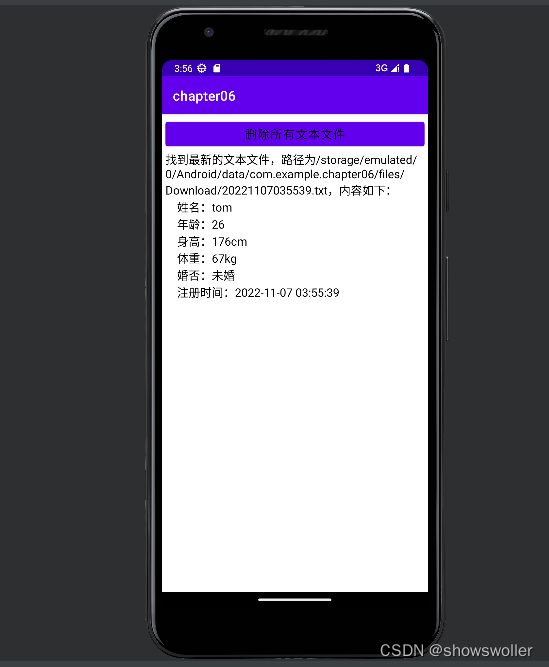
一键删除后效果如下

FileReadActivity类
package com.example.chapter06;

import android.annotation.SuppressLint;
import android.os.Bundle;
import android.os.Environment;
import android.util.Log;
import android.view.View;
import android.widget.TextView;

import androidx.appcompat.app.AppCompatActivity;

import com.example.chapter06.util.FileUtil;
import com.example.chapter06.util.ToastUtil;

import java.io.File;
import java.util.ArrayList;
import java.util.List;

@SuppressLint("SetTextI18n")
public class FileReadActivity extends AppCompatActivity implements View.OnClickListener {
    private final static String TAG = "FileReadActivity";
    private TextView tv_content;
    private String mPath; // 私有目录路径
    private List<File> mFilelist = new ArrayList<File>();

    @Override
    protected void onCreate(Bundle savedInstanceState) {
        super.onCreate(savedInstanceState);
        setContentView(R.layout.activity_file_read);
        tv_content = findViewById(R.id.tv_content);
        findViewById(R.id.btn_delete).setOnClickListener(this);
        // 获取当前App的私有下载目录
        mPath = getExternalFilesDir(Environment.DIRECTORY_DOWNLOADS).toString() + "/";
        showFileContent(); // 显示最新的文本文件内容
    }

    // 显示最新的文本文件内容
    private void showFileContent() {
        // 获得指定目录下面的所有文本文件
        mFilelist = FileUtil.getFileList(mPath, new String[]{".txt"});
        if (mFilelist.size() > 0) {
            // 打开并显示选中的文本文件内容
            String file_path = mFilelist.get(0).getAbsolutePath();
            String content = FileUtil.openText(file_path);
            String desc = String.format("找到最新的文本文件,路径为%s,内容如下:\n%s",
                    file_path, content);
            tv_content.setText(desc);
        } else {
            tv_content.setText("私有目录下未找到任何文本文件");
        }
    }

    @Override
    public void onClick(View v) {
        if (v.getId() == R.id.btn_delete) {
            for (int i = 0; i < mFilelist.size(); i++) {
                String file_path = mFilelist.get(i).getAbsolutePath();
                File f = new File(file_path);
                if (!f.delete()) {
                    Log.d(TAG, "file_path=" + file_path + ", delete failed");
                }
            }
            ToastUtil.show(this, "已删除私有目录下的所有文本文件");
        }
    }

}
FileWriteActivity类
package com.example.chapter06;

import android.annotation.SuppressLint;
import android.os.Bundle;
import android.os.Environment;
import android.text.TextUtils;
import android.view.View;
import android.widget.CheckBox;
import android.widget.CompoundButton;
import android.widget.EditText;
import android.widget.TextView;

import androidx.appcompat.app.AppCompatActivity;

import com.example.chapter06.util.DateUtil;
import com.example.chapter06.util.FileUtil;
import com.example.chapter06.util.ToastUtil;

@SuppressLint("SetTextI18n")
public class FileWriteActivity extends AppCompatActivity implements View.OnClickListener, CompoundButton.OnCheckedChangeListener {
    private EditText et_name;
    private EditText et_age;
    private EditText et_height;
    private EditText et_weight;
    private boolean bMarried = false;
    private String[] typeArray = {"未婚", "已婚"};
    private String mPath; // 私有目录路径
    private TextView tv_path;

    @Override
    protected void onCreate(Bundle savedInstanceState) {
        super.onCreate(savedInstanceState);
        setContentView(R.layout.activity_file_write);
        et_name = findViewById(R.id.et_name);
        et_age = findViewById(R.id.et_age);
        et_height = findViewById(R.id.et_height);
        et_weight = findViewById(R.id.et_weight);
        tv_path = findViewById(R.id.tv_path);
        CheckBox ck_married = findViewById(R.id.ck_married);
        ck_married.setOnCheckedChangeListener(this);
        findViewById(R.id.btn_save).setOnClickListener(this);
        // 获取当前App的私有下载目录
        mPath = getExternalFilesDir(Environment.DIRECTORY_DOWNLOADS).toString() + "/";
    }

    @Override
    public void onCheckedChanged(CompoundButton buttonView, boolean isChecked) {
        bMarried = isChecked;
    }

    @Override
    public void onClick(View v) {
        if (v.getId() == R.id.btn_save) {
            String name = et_name.getText().toString();
            String age = et_age.getText().toString();
            String height = et_height.getText().toString();
            String weight = et_weight.getText().toString();
            if (TextUtils.isEmpty(name)) {
                ToastUtil.show(this, "请先填写姓名");
                return;
            } else if (TextUtils.isEmpty(age)) {
                ToastUtil.show(this, "请先填写年龄");
                return;
            } else if (TextUtils.isEmpty(height)) {
                ToastUtil.show(this, "请先填写身高");
                return;
            } else if (TextUtils.isEmpty(weight)) {
                ToastUtil.show(this, "请先填写体重");
                return;
            }
            String content = String.format(" 姓名:%s\n 年龄:%s\n 身高:%scm\n 体重:%skg\n 婚否:%s\n 注册时间:%s\n",
                    name, age, height, weight, typeArray[bMarried?1:0], DateUtil.getNowDateTime("yyyy-MM-dd HH:mm:ss"));
            String file_path = mPath + DateUtil.getNowDateTime("") + ".txt";
            FileUtil.saveText(file_path, content); // 把字符串内容保存为文本文件
            tv_path.setText("用户注册信息文件的保存路径为:\n" + file_path);
            ToastUtil.show(this, "数据已写入存储卡文件");
        }
    }

}
activity_file_readXML文件
<LinearLayout xmlns:android="http://schemas.android.com/apk/res/android"
    android:layout_width="match_parent"
    android:layout_height="match_parent"
    android:orientation="vertical"
    android:padding="5dp" >

    <Button
        android:id="@+id/btn_delete"
        android:layout_width="match_parent"
        android:layout_height="wrap_content"
        android:text="删除所有文本文件"
        android:textColor="@color/black"
        android:textSize="17sp" />

    <TextView
        android:id="@+id/tv_content"
        android:layout_width="match_parent"
        android:layout_height="wrap_content"
        android:textColor="@color/black"
        android:textSize="17sp" />

</LinearLayout>
activity_file_writeXML文件
<LinearLayout xmlns:android="http://schemas.android.com/apk/res/android"
    android:layout_width="match_parent"
    android:layout_height="match_parent"
    android:orientation="vertical"
    android:padding="5dp" >

    <RelativeLayout
        android:layout_width="match_parent"
        android:layout_height="40dp" >

        <TextView
            android:id="@+id/tv_name"
            android:layout_width="wrap_content"
            android:layout_height="match_parent"
            android:gravity="center"
            android:text="姓名:"
            android:textColor="@color/black"
            android:textSize="17sp" />

        <EditText
            android:id="@+id/et_name"
            android:layout_width="match_parent"
            android:layout_height="match_parent"
            android:layout_marginBottom="3dp"
            android:layout_marginTop="3dp"
            android:layout_toRightOf="@+id/tv_name"
            android:background="@drawable/editext_selector"
            android:gravity="left|center"
            android:hint="请输入姓名"
            android:inputType="text"
            android:maxLength="12"
            android:textColor="@color/black"
            android:textSize="17sp" />
    </RelativeLayout>

    <RelativeLayout
        android:layout_width="match_parent"
        android:layout_height="40dp" >

        <TextView
            android:id="@+id/tv_age"
            android:layout_width="wrap_content"
            android:layout_height="match_parent"
            android:gravity="center"
            android:text="年龄:"
            android:textColor="@color/black"
            android:textSize="17sp" />

        <EditText
            android:id="@+id/et_age"
            android:layout_width="match_parent"
            android:layout_height="match_parent"
            android:layout_marginBottom="3dp"
            android:layout_marginTop="3dp"
            android:layout_toRightOf="@+id/tv_age"
            android:background="@drawable/editext_selector"
            android:gravity="left|center"
            android:hint="请输入年龄"
            android:inputType="number"
            android:maxLength="2"
            android:textColor="@color/black"
            android:textSize="17sp" />
    </RelativeLayout>

    <RelativeLayout
        android:layout_width="match_parent"
        android:layout_height="40dp" >

        <TextView
            android:id="@+id/tv_height"
            android:layout_width="wrap_content"
            android:layout_height="match_parent"
            android:gravity="center"
            android:text="身高:"
            android:textColor="@color/black"
            android:textSize="17sp" />

        <EditText
            android:id="@+id/et_height"
            android:layout_width="match_parent"
            android:layout_height="match_parent"
            android:layout_marginBottom="3dp"
            android:layout_marginTop="3dp"
            android:layout_toRightOf="@+id/tv_height"
            android:background="@drawable/editext_selector"
            android:gravity="left|center"
            android:hint="请输入身高"
            android:inputType="number"
            android:maxLength="3"
            android:textColor="@color/black"
            android:textSize="17sp" />
    </RelativeLayout>

    <RelativeLayout
        android:layout_width="match_parent"
        android:layout_height="40dp" >

        <TextView
            android:id="@+id/tv_weight"
            android:layout_width="wrap_content"
            android:layout_height="match_parent"
            android:gravity="center"
            android:text="体重:"
            android:textColor="@color/black"
            android:textSize="17sp" />

        <EditText
            android:id="@+id/et_weight"
            android:layout_width="match_parent"
            android:layout_height="match_parent"
            android:layout_marginBottom="3dp"
            android:layout_marginTop="3dp"
            android:layout_toRightOf="@+id/tv_weight"
            android:background="@drawable/editext_selector"
            android:gravity="left|center"
            android:hint="请输入体重"
            android:inputType="numberDecimal"
            android:maxLength="5"
            android:textColor="@color/black"
            android:textSize="17sp" />
    </RelativeLayout>

    <RelativeLayout
        android:layout_width="match_parent"
        android:layout_height="40dp" >

        <CheckBox
            android:id="@+id/ck_married"
            android:layout_width="wrap_content"
            android:layout_height="match_parent"
            android:gravity="center"
            android:checked="false"
            android:text="已婚"
            android:textColor="@color/black"
            android:textSize="17sp" />
    </RelativeLayout>

    <Button
        android:id="@+id/btn_save"
        android:layout_width="match_parent"
        android:layout_height="wrap_content"
        android:text="保存文本到存储卡"
        android:textColor="@color/black"
        android:textSize="17sp" />

    <TextView
        android:id="@+id/tv_path"
        android:layout_width="wrap_content"
        android:layout_height="match_parent"
        android:textColor="@color/black"
        android:textSize="17sp" />

</LinearLayout>
三、在存储卡上读写图片文件
文本文件读写可以转换为对字符串的读写,而图片文件保存的是图像数据,需要专门的位图工具Bitmap处理,位图对象依据来源不同又分成3种获取方式,分别对应位图工厂BitmapFactory的下列三种方法
1:decodeResource 从指定路径的文件种获取位图数据
2:decodeFile 从指定路径的文件中获取位图数据
3:decodeStream 从指定的输入流中获取位图数据
ImageWriteActivity类
package com.example.chapter06;

import androidx.appcompat.app.AppCompatActivity;

import android.graphics.Bitmap;
import android.graphics.BitmapFactory;
import android.os.Bundle;
import android.os.Environment;
import android.view.View;
import android.widget.ImageView;
import android.widget.TextView;

import com.example.chapter06.util.DateUtil;
import com.example.chapter06.util.FileUtil;
import com.example.chapter06.util.ToastUtil;

public class ImageWriteActivity extends AppCompatActivity implements View.OnClickListener {
    private ImageView iv_content;
    private TextView tv_path;

    @Override
    protected void onCreate(Bundle savedInstanceState) {
        super.onCreate(savedInstanceState);
        setContentView(R.layout.activity_image_write);
        iv_content = findViewById(R.id.iv_content);
        iv_content.setImageResource(R.drawable.vivo); // 设置图像视图的图片资源
        tv_path = findViewById(R.id.tv_path);
        findViewById(R.id.btn_save).setOnClickListener(this);
    }

    @Override
    public void onClick(View v) {
        if (v.getId() == R.id.btn_save) {
            // 获取当前App的私有下载目录
            String path = getExternalFilesDir(Environment.DIRECTORY_DOWNLOADS).toString() + "/";
            // 从指定的资源文件中获取位图对象
            Bitmap bitmap = BitmapFactory.decodeResource(getResources(), R.drawable.huawei);
            String file_path = path + DateUtil.getNowDateTime("") + ".jpeg";
            FileUtil.saveImage(file_path, bitmap); // 把位图对象保存为图片文件
            tv_path.setText("图片文件的保存路径为:\n" + file_path);
            ToastUtil.show(this, "图片已写入存储卡文件");
        }
    }

}
ImageReadActivity类
package com.example.chapter06;

import androidx.appcompat.app.AppCompatActivity;

import android.graphics.Bitmap;
import android.graphics.BitmapFactory;
import android.net.Uri;
import android.os.Bundle;
import android.os.Environment;
import android.util.Log;
import android.view.View;
import android.widget.ImageView;
import android.widget.TextView;

import com.example.chapter06.util.FileUtil;
import com.example.chapter06.util.ToastUtil;

import java.io.File;
import java.util.ArrayList;
import java.util.List;

public class ImageReadActivity extends AppCompatActivity implements View.OnClickListener {
    private final static String TAG = "ImageReadActivity";
    private TextView tv_content;
    private ImageView iv_content;
    private String mPath; // 私有目录路径
    private List<File> mFilelist = new ArrayList<File>();

    @Override
    protected void onCreate(Bundle savedInstanceState) {
        super.onCreate(savedInstanceState);
        setContentView(R.layout.activity_image_read);
        tv_content = findViewById(R.id.tv_content);
        iv_content = findViewById(R.id.iv_content);
        findViewById(R.id.btn_delete).setOnClickListener(this);
        // 获取当前App的私有下载目录
        mPath = getExternalFilesDir(Environment.DIRECTORY_DOWNLOADS).toString() + "/";
        showFileContent(); // 显示最新的图片文件内容
    }

    // 显示最新的图片文件内容
    private void showFileContent() {
        // 获得指定目录下面的所有图片文件
        mFilelist = FileUtil.getFileList(mPath, new String[]{".jpeg"});
        if (mFilelist.size() > 0) {
            // 打开并显示选中的图片文件内容
            String file_path = mFilelist.get(0).getAbsolutePath();
            tv_content.setText("找到最新的图片文件,路径为"+file_path);
            // 显示存储卡图片文件的第一种方式:直接调用setImageURI方法
            //iv_content.setImageURI(Uri.parse(file_path)); // 设置图像视图的路径对象
            // 第二种方式:先调用BitmapFactory.decodeFile获得位图,再调用setImageBitmap方法
            //Bitmap bitmap = BitmapFactory.decodeFile(file_path);
            //iv_content.setImageBitmap(bitmap); // 设置图像视图的位图对象
            // 第三种方式:先调用FileUtil.openImage获得位图,再调用setImageBitmap方法
            Bitmap bitmap = FileUtil.openImage(file_path);
            iv_content.setImageBitmap(bitmap); // 设置图像视图的位图对象
        } else {
            tv_content.setText("私有目录下未找到任何图片文件");
        }
    }

    @Override
    public void onClick(View v) {
        if (v.getId() == R.id.btn_delete) {
            for (int i = 0; i < mFilelist.size(); i++) {
                // 获取该文件的绝对路径字符串
                String file_path = mFilelist.get(i).getAbsolutePath();
                File f = new File(file_path);
                if (!f.delete()) { // 删除文件,并判断是否成功删除
                    Log.d(TAG, "file_path=" + file_path + ", delete failed");
                }
            }
            ToastUtil.show(this, "已删除私有目录下的所有图片文件");
        }
    }

}
activity_image_readXML文件
<LinearLayout xmlns:android="http://schemas.android.com/apk/res/android"
    android:layout_width="match_parent"
    android:layout_height="match_parent"
    android:orientation="vertical"
    android:padding="5dp" >

    <Button
        android:id="@+id/btn_delete"
        android:layout_width="match_parent"
        android:layout_height="wrap_content"
        android:text="删除所有图片文件"
        android:textColor="@color/black"
        android:textSize="17sp" />

    <TextView
        android:id="@+id/tv_content"
        android:layout_width="match_parent"
        android:layout_height="wrap_content"
        android:textColor="@color/black"
        android:textSize="17sp" />

    <ImageView
        android:id="@+id/iv_content"
        android:layout_width="match_parent"
        android:layout_height="250dp"
        android:scaleType="fitCenter" />

</LinearLayout>
activity_image_writeXML文件
<LinearLayout xmlns:android="http://schemas.android.com/apk/res/android"
    android:layout_width="match_parent"
    android:layout_height="match_parent"
    android:orientation="vertical"
    android:padding="5dp" >

    <ImageView
        android:id="@+id/iv_content"
        android:layout_width="match_parent"
        android:layout_height="250dp"
        android:scaleType="fitCenter" />

    <Button
        android:id="@+id/btn_save"
        android:layout_width="match_parent"
        android:layout_height="wrap_content"
        android:text="把资源图片保存到存储卡"
        android:textColor="@color/black"
        android:textSize="17sp" />

    <TextView
        android:id="@+id/tv_path"
        android:layout_width="wrap_content"
        android:layout_height="match_parent"
        android:textColor="@color/black"
        android:textSize="17sp" />

</LinearLayout>